
Enable editing in Timeline to build out your project plan. Import a schedule from a third party or build it out manually.
Add Activities and Milestones to map out your execution plan. Use parent Phases and simple scheduling logic, such as predecessors and successors, to structure your project.
Tip: Plan ahead with future Activities & Milestones. Add activities to keep your team aligned on progress toward delivery.
- Examples: Milestone: GMP, or Activity: OAC Meeting
Creating Activities
To create a new activity (Phases, Tasks, and Events) on your project, follow these steps:
- Navigate to the Timeline page and select Enable editing
- Click the + New Activity button
- A new row is added at the bottom of your workspace view
- Rename the New Activity
- Fill out the following fields to schedule your activity:
- Duration - # of days (in workdays)
- Predecessor - Select an activity that must finish before this activity can start
- Successor - Select an activity that can’t start until this activity finishes
- Start Date - Start date of the activity (or rely on predecessor to schedule)
- End Date - End date of the activity (or rely on duration to schedule)

Tip: Right-click an Activity to see additional functionality such as Nesting, Adding activities in-line, or deleting.
Creating Milestones
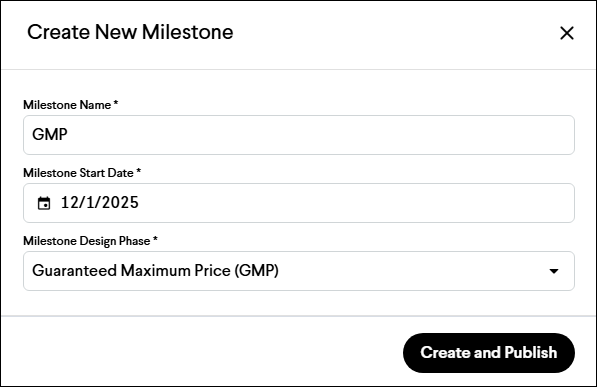
To create a new milestone on your project from the Timeline, follow these steps:
- Navigate to the Timeline page and select Enable editing
- Click the + New Milestone button
- Fill out all of the required fields below:
- Milestone Name
- Milestone Start Date
- Milestone Design Phase - Select the corresponding design phase for the Milestone
- Click the Create and Publish button
Creating Parent Phases
Group a set of activities under a shared heading or parent phase. This can be done in two ways:
Option 1 - Nesting & Unnesting
- Right-click on an activity to open the menu
- Select Nest or Unnest to create and remove parent phases

Option 2 - Drag & Drop Activities
- Select an activity or group of activities and drag/drop them to a new location.
- Or, drop the selected activities onto another activity to nest them as children.

Note: Parent phases will summarize the Start Date, End Date, and Duration of their children unless they are manually scheduled.
Additionally, Milestones cannot be Parent Phases.
Scheduling Activities and Defining Dependencies
Schedule Activities or Milestones just like a traditional project plan by establishing dependencies between them. Dependencies control how one activity’s timing affects another, and our platform supports all four standard relationship types:
- FS (Finish-to-Start) - Default / Most common
- FF (Finish-to-Finish) - Aligned completions
- SS (Start-to-Start) - Aligned starts
- SF (Start-to-Finish) - Least common
You can define relationships in two ways:
Option 1 - Table View (Predecessor & Successor Columns)
- Select an activity from the dropdown
- Or, type the line number + relationship code (e.g., L02SS). Defaults to FS if unspecified.
Option 2 - Gantt Chart (Drag & Connect)
- Hover over an activity bar to reveal connection points.
- Drag from one end to another activity to create a relationship (e.g., Finish-to-Start)..

Note: When a link is attempted that creates a scheduling cycle, the connection will not be created.
Manually Scheduled Activities
Manually Scheduled Activities are not affected by the automatic scheduling engine. Their start and end dates remain fixed unless you intentionally change them — they do not shift based on nested activities, dependencies, or scheduling logic.
This gives you full control over when certain work shouldn’t follow traditional scheduling rules.
Note: If you have an existing project that utilizes Timeline, all of your existing Phases have been set to Manually Scheduled in Spring 2025.
Scheduling Cycles
Scheduling cycles can be created if invalid dependencies are defined within Timeline. To resolve the cycle, select a path that best suits your intended action.
Importing Schedules
Join supports importing schedules created in other tools, such as Oracle Primavera P6, Microsoft Project, Planera, and Phoenix. Learn more.