
When working with Items with Options, they can be detached from an existing Item to become a standalone Item.
Detaching an Option From an Item
Detach an Option from its parent Item in either of these situations:
- The Option is no longer mutually exclusive with its siblings and should become a standalone Item.
- You need to delete the Option. An Option must be detached before it can be deleted like a regular Item.
To detach an Option from an Item, follow these steps:
- Click Items in the navigation panel.
- Click the name of the parent Item of the Option to go to the Item detail view.
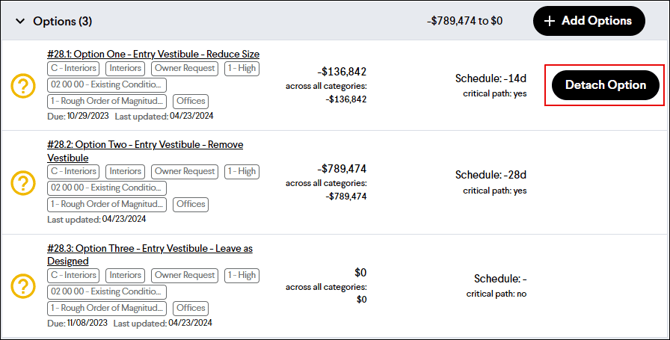
- In the Options section, hover over the Option and click the Detach Option button on the far right.
- Click the Detach button in the Detach Option window to confirm you want to detach the Option from the Item.
Note: After an Option is detached, it can be added back to the Item by converting the existing Item back into an Option.