
Insights Alerts
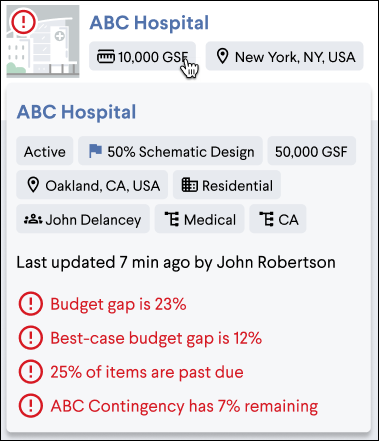
Alert rules notify you when project metrics exceed a defined threshold, giving you immediate visibility into which projects need attention and may be at risk. A default set of rules is enabled for your company out of the box.
To modify alert rules, you must be a Join Company Administrator with access to Join Insights. From there, you can customize, add, or delete rules to match your company's preferences. Rules apply across your entire company.
The alert rules can be accessed by navigating to Company Settings > Insights Alerts, or by clicking the Configure Alerts button on the Insights page.
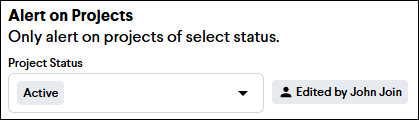
Alert on Projects
Configure which projects will trigger alerts based on their status. This way, you can prevent test or completed projects from triggering unwanted alerts.
Cost Alerts
Cost alerts monitor the costs on your projects and trigger when the specified threshold is exceeded.
Gap
Gap alerts monitor the difference between a project's Running Total and Budget, and trigger when the Gap exceeds the specified threshold. Set the desired Gap percentage for each Milestone Design Phase.

Path to Budget
Path to Budget alerts monitor the Gap for a project's best-case scenario by taking into account deductive pending items. Set the desired Gap percentage for each Milestone Design Phase.

Items Alerts
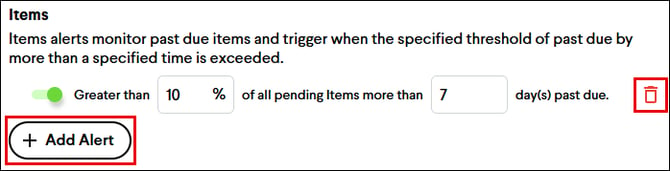
Items alerts monitor past due items and trigger when the specified threshold of past due by more than a specified time is exceeded. Set the desired percentage of pending items and a duration in days.

Contingencies & Allowances Alerts
Contingencies & Allowances alerts monitor potential draw down and trigger when the specified threshold is exceeded. Set the desired percentage remaining for each Milestone Design Phase.

Adding and Deleting Alert Rules
-
To add a new alert rule, click the + Add Alert button under each alert section and enter the desired threshold values.
-
To delete an existing alert rule, click the red trashcan icon to the right of the alert rule.
Enabling and Disabling Alert Rules
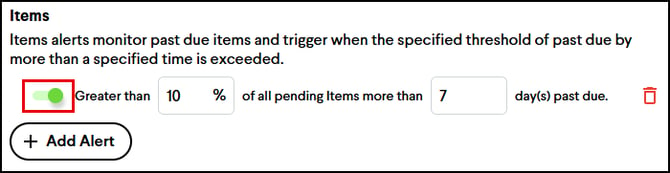
Each alert rule can be enabled or disabled by clicking the toggle to the left of the alert rule.
Note: It may take up to five minutes for the alerts in Insights to update after making changes to the alert rules.