
Included in Join Benchmarking
Escalation Factors
Within the Project Comparisons report, the Escalation section can be used to adjust historical costs based on location and time.

Location Factor
When comparing against projects located in different geographic areas, it is essential to normalize the costs using a location escalation factor since the cost of construction varies based on location (e.g., it’s 38% more expensive to build in San Francisco, CA than Denver, CO). The location escalation factor is entered as a percentage.
Time Factor
A time escalation factor is also needed to normalize costs due to escalation and continually rising costs. The time escalation factor is entered as a percentage and is a total escalation for the entire duration, not a yearly rate.
Future Time Factor
When using the time factor, which escalates costs to the latest time period, you can add an additional future time factor to escalate projects to a future date. When building conceptual estimates, it is common to have to escalate to a future point in time when the work will actually be bid out. The future time escalation factor is entered as a percentage and is a total escalation from the latest period to a future point in time, not a yearly rate.
Manually Escalating Costs
All three of the escalation factors can be entered manually as percentages for each comparison project. Use this option if you don't want to use the RSMeans indices or your company's custom indices.
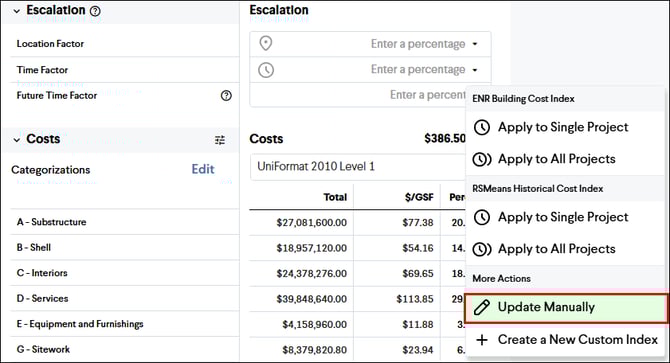
Tip: Enter a positive percentage to increase the project cost from a less expensive location and enter a negative percentage to decrease the project cost from a more expensive location.
Automatically Escalating Costs
You can automatically escalate costs in the Project Comparisons report using Gordian’s RSMeans Historical and City Cost Indexes or any of your own company standard cost indices. To utilize these indices, follow these steps:
- Click either the Location Factor or Time Factor drop-down menu for a comparison project
- Select one of the following options:
- Apply to Single Project to apply a factor to only that comparison project
- Apply to All Projects to apply a factor to all comparison projects
Automatically Escalating by Location
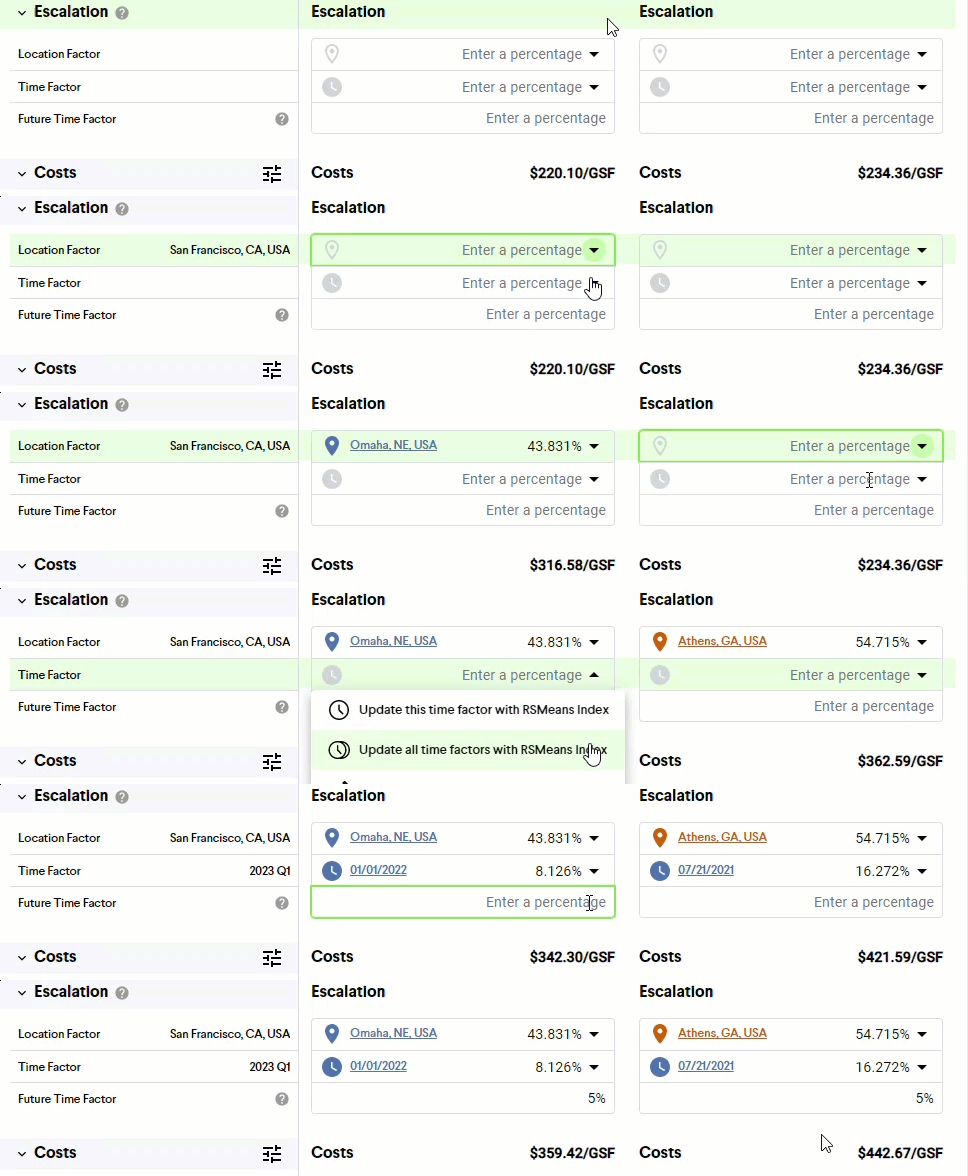
When automatically escalating the location factor, the report will search the selected index for the project location entered for both the comparison project and the current project and assign the correct factor. If an exact match is found for both locations, the location symbol will be blue. If an exact match is not found for both locations, the location will be determined by finding the closest city in the index based on latitude and longitude and the location symbol will be orange. If you don’t agree with the city that was automatically selected from the index, it can be manually changed by clicking the name of the city and selecting a new location from the drop-down.
Automatically Escalating by Time
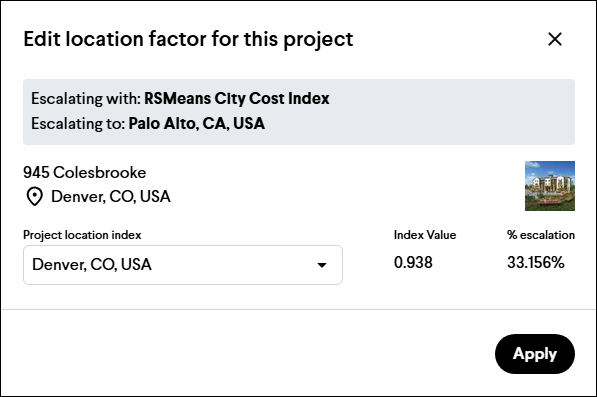
When automatically escalating the time factor, the report will search the selected index for the currently selected milestone date and escalate it to the latest index period available. The time periods during which the project was escalated from and to will be shown. You can choose to select a different date to escalate from by clicking the date and then entering or selecting a new date.
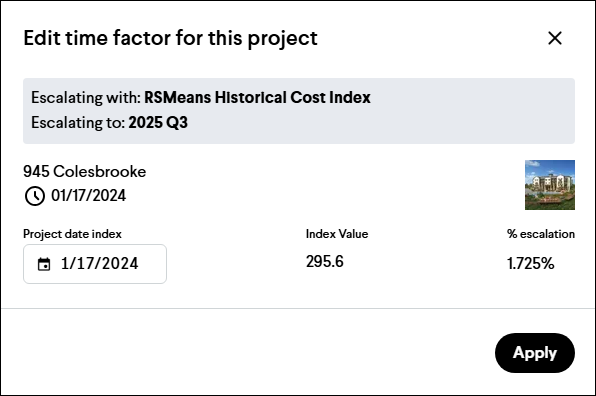
Note: Gordian’s RSMeans Construction Cost Indexes are updated quarterly by Join.
Calculations
After applying each escalation factor, the comparison project's cost will automatically be recalculated. The three percentages are not added together and then multiplied by the original cost as a single percentage; they are all multiplied by the original cost as separate percentages.
Escalated Cost = Original Historical Cost x Location Factor x Time Factor x Future Time Factor
Note: Escalation factors are displayed to three decimal places, but use up to nine decimal places for more precise calculations. Hover over an escalation factor to see the full value.